1Getting started
Readcast plays podcasts and "voiced" articles from a single playback list. Launch the app and sign in with your Google account or Apple ID. Once signed in, your library and playback positions sync across devices (sync is a Pro feature — if you only want to play podcasts, you can keep using Readcast for free).
2Adding shows and article sources
Add a podcast show
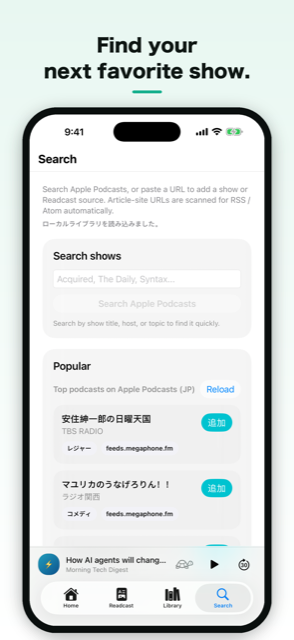
- Open the Search tab.
- Search Apple Podcasts by show name, host, or topic, or pick from the Top Charts.
- Tap Add to subscribe. New episodes will appear in your playback list.
Add an article source (news site or blog) PRO
- Paste the URL of the site, or of its RSS/Atom feed, into the field on the Search tab.
- If you paste a site URL, Readcast looks for its RSS/Atom feed automatically.
- Once added, new articles are fetched, voiced automatically, and placed in your playback list.
3Home and the playback list
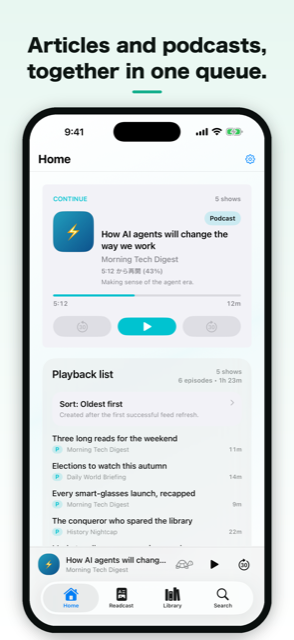
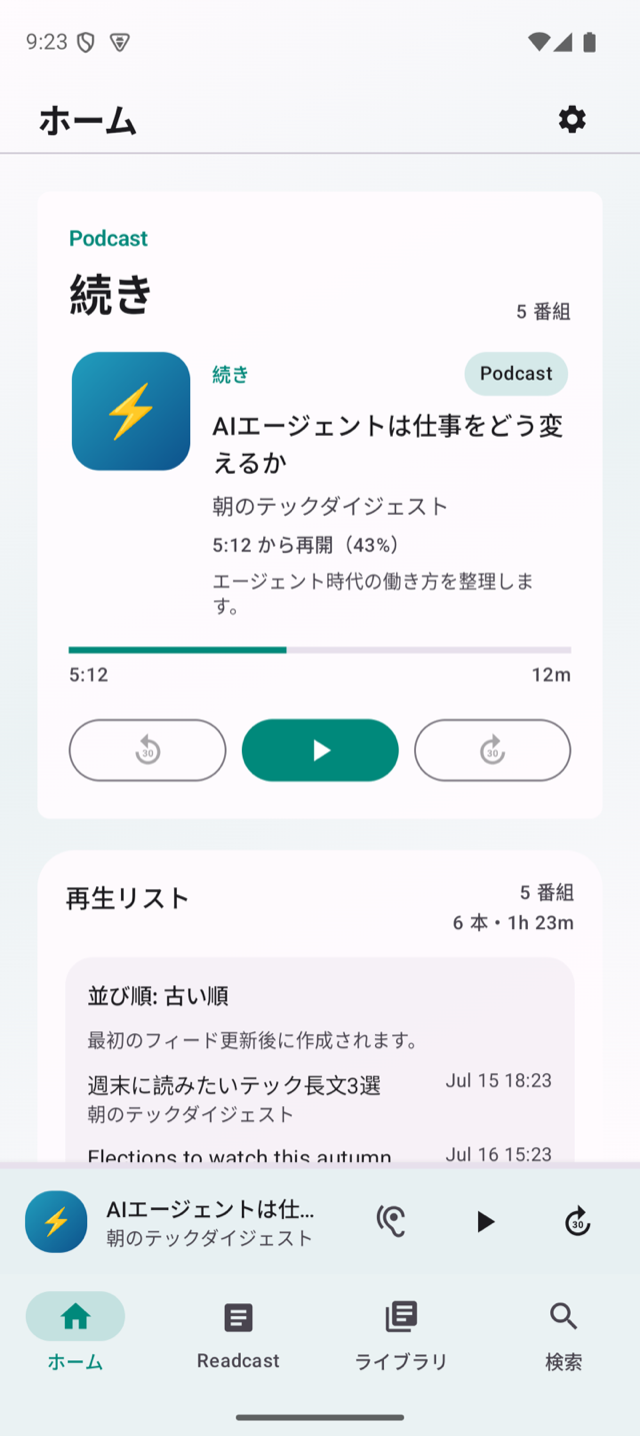
The Home tab shows Resume (episodes you are partway through) and your playback list. The playback list is your daily listening queue: new episodes from subscribed shows and voiced articles, in chronological order.
- Sort order — switch between oldest-first and newest-first. Oldest-first is handy for working through a backlog.
- Continuous playback — when an episode ends, the next playable one starts automatically.
- Waiting for an article — if the next article's audio isn't ready yet, playback pauses briefly and resumes on its own.
- Finished episodes — completed episodes drop off the playback list.
Switching which list you listen to
The chips at the top of Home switch between Playback list / Listen Later / Favorites / your own lists. Your choice is saved to your account and shared between iOS and Android. On Android Auto, pick a list (Playback list / Listen Later / Favorites) from the list view on the car display.
- Listen Later — episodes leave the list automatically once you finish them.
- Favorites — episodes stay on the list after you finish them. With Favorites selected, playback runs through the list in order and stops after the last item.
- Remove from a list — long-press a row to remove it.
4Reading and listening to articles
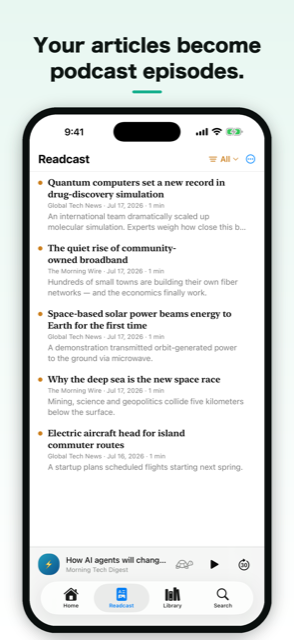
The Readcast tab lists the articles fetched from your article sources. Tap one to read it in reader view. Once an article has been voiced, you can listen to it straight from the playback list.
- Filter — use the menu at the top to show, for example, all articles or only unread ones.
- Read status — articles are marked as read automatically once you open them, and the filter reflects this.
Article reader
Tapping an article opens a reader view with just the article body — no ads or menus (same on iOS and Android).
- Text size — tap the "Aa" button in the toolbar to choose Small / Medium / Large / Extra Large.
- Listen Later / Favorites — the bookmark and heart buttons at the top right pin the article's audio to those lists.
- Listen — the headphones button at the top right plays the article's audio right away. If the audio hasn't been generated yet, generation starts on the spot.
5Turning articles into audio PRO
Article audio is generated on your device automatically. There is normally nothing to do: articles are prepared in the background, in order, before playback reaches them.
- Automatic generation — audio is generated ahead of time, following the order of your playback list. A progress bar appears at the top of the screen while it runs.
- Body extraction — boilerplate such as ads and subscription prompts is stripped so only the article body is read aloud.
- Pronunciation dictionary — abbreviations and proper nouns are converted to natural readings.
- Language detection — English articles are read with an English voice, Japanese articles with a Japanese one.
- Changing the voice — pick a voice under Settings → Voice. After a change, article audio on this device is regenerated with the new voice.
6Using the player
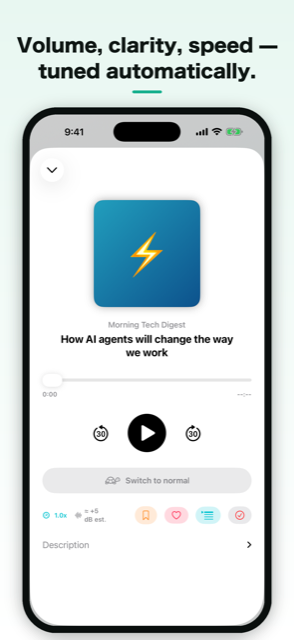
Tap the mini player at the bottom of the screen to open the full player.
- Skip forward / back 30 seconds — large buttons that are easy to hit, even while driving.
- Playback speed — 0.8x to 3.0x. Set a global default, then override it per show or per episode.
- Turtle button — one tap temporarily drops to normal speed (1.0x), so you can slow down just for a hard-to-catch passage.
- Sleep timer — tap the moon icon next to the speed menu and choose 30 minutes / 1 hour / Custom (enter minutes); playback stops when the time is up. While the timer is running, the remaining time is shown next to the icon, and Off in the same menu cancels it. Your custom minutes are remembered for next time.
- Volume leveling — evens out loudness differences between shows.
- Speech Clarity — boosts the vocal range so speech stays intelligible in noisy places.
- Listen Later / Favorites — pin the episode to those lists.
- Mark as played — treat the episode as finished and remove it from the playback list.
7Library
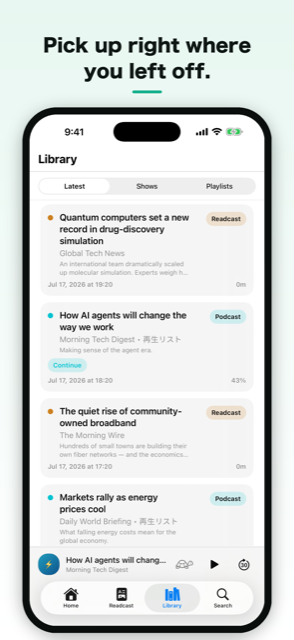
The Library tab is an overview of everything you have.
- Latest — a combined feed of new episodes and articles across all shows, with playback progress (%).
- Shows — your subscribed shows and article sources. Per-show settings (speed, volume, and so on) live here too.
- Playlists — manage the playback list, Listen Later, and Favorites. Long-press to remove an item from a list.
8Syncing across devices PRO
Sign in with the same account and the following stays in sync between iOS, Android, and the Chrome extension.
- Subscribed shows, article sources, and the playback list
- Playback positions (pick up where you left off on another device)
- Playback settings (per-show speed, volume leveling, and so on)
- Listen Later, Favorites, and played status
9Chrome extension PRO
You can play the same library in Chrome on your computer. Install the extension, sign in with the same account, and continue your playback list at your desk. You can also send the article page you are reading straight to Readcast.
10Listening with Android Auto
Readcast appears on Android Auto–compatible car displays. Get in, pick Readcast, and continuous playback resumes from where your playback list left off.
- While driving, only episodes and articles whose audio is ready are played, in order.
- If the next article's audio is still being generated, playback resumes automatically as soon as it's done.
11Settings
Open Settings from the gear icon at the top right of Home.
- Language — System / 日本語 / English
- Default speed — the speed used when a show or episode has no override
- Downloads — download on Wi-Fi only, on or off
- Voice — the voice used to read articles. Choose from the TTS voices installed on your device (add voices from your OS settings → Text-to-speech)
- Account — sign out / delete account
- Subscription — view your plan / restore purchases
Update notifications
When a new version is available, the app lets you know at launch and can take you straight to the store's update page. In the Chrome extension, a "Reload to update" banner appears at the top of the window once a new version has been delivered.
12Troubleshooting
Reporting a playback or sync problem
- Open Settings and scroll to the Diagnostic log section.
- Tap Save (saves to your device's downloads) or Share.
- Send the log to support@sanei.m7e.org. The log records playback, sync, and audio-generation activity; it does not include article text or personal notes.
Article audio is slow to appear
Audio is generated one article at a time, so it can take a while right after a large batch of articles is fetched. Keeping the app open lets generation continue.
An article is cut off partway through
Some sites don't publish the full article text in their feed, so only the opening may be available (for example, paywalled articles). In that case, open the article and read it on the original site.
13About Readcast Pro
Searching, subscribing to, and playing public podcasts is free. Upgrading to Readcast Pro unlocks:
- Adding article sources and automatic article-to-audio conversion
- Syncing your library and playback positions across iOS, Android, and the Chrome extension
You can purchase Pro inside the app. If your purchase isn't showing after switching phones, try Restore purchases under Settings → Subscription.